
Summary
This article summarizes the features of the Inventory Tab in your ServiceBox settings.
What is a ServiceBox Inventory?
Inventory in ServiceBox refers to physical items stored across various locations in your organization—whether that’s a head office, warehouse, or vehicle. The inventory module helps you:
-
Track items stored in different locations
-
Transfer items between locations
-
Set reorder points to restock efficiently
-
Update quantities when new items are received
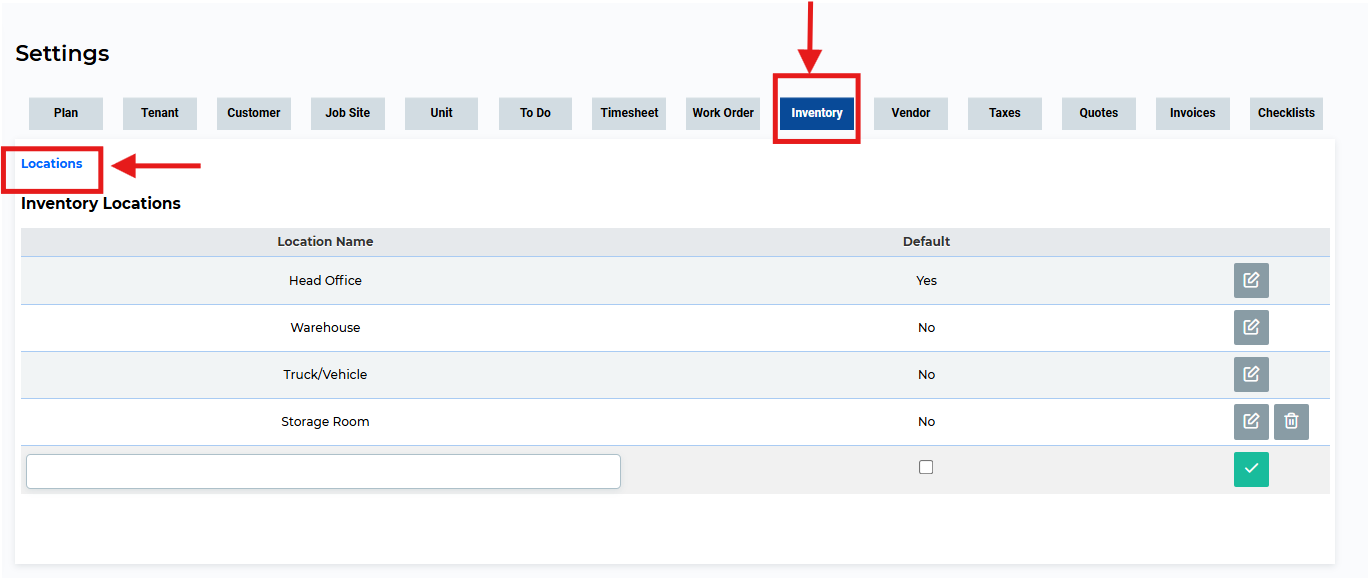
Inventory Tab: Locations
This section allows you to create and manage inventory storage locations. These could include office storage rooms, warehouses, or even individual vehicles. Example shown below:
Updating Inventory
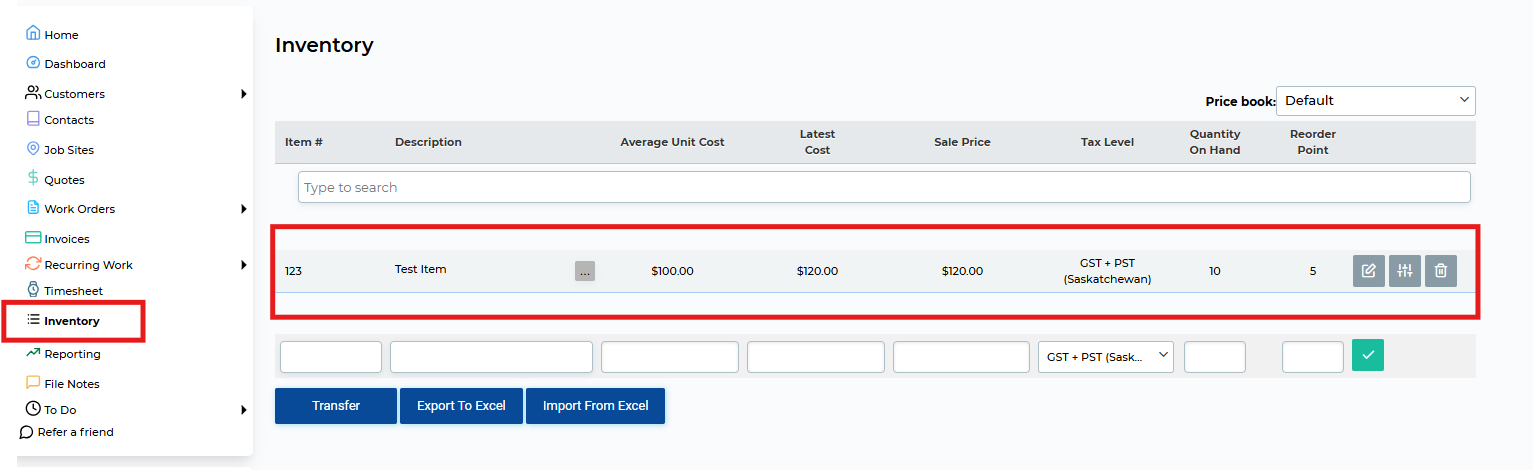
Once you’ve added one or more locations, click “Inventory” on the left-hand side of your screen to access your inventory list.
Here, you can:
-
View and update quantities for specific items by location
-
Edit values like average cost, latest cost, sale price, and tax level
-
Set a reorder point to automatically flag when stock is low
Action Buttons
On the right-hand side of each inventory line, you’ll see buttons that allow you to:
-
Edit the item
-
Adjust quantities
-
Delete the item
Transferring Inventory
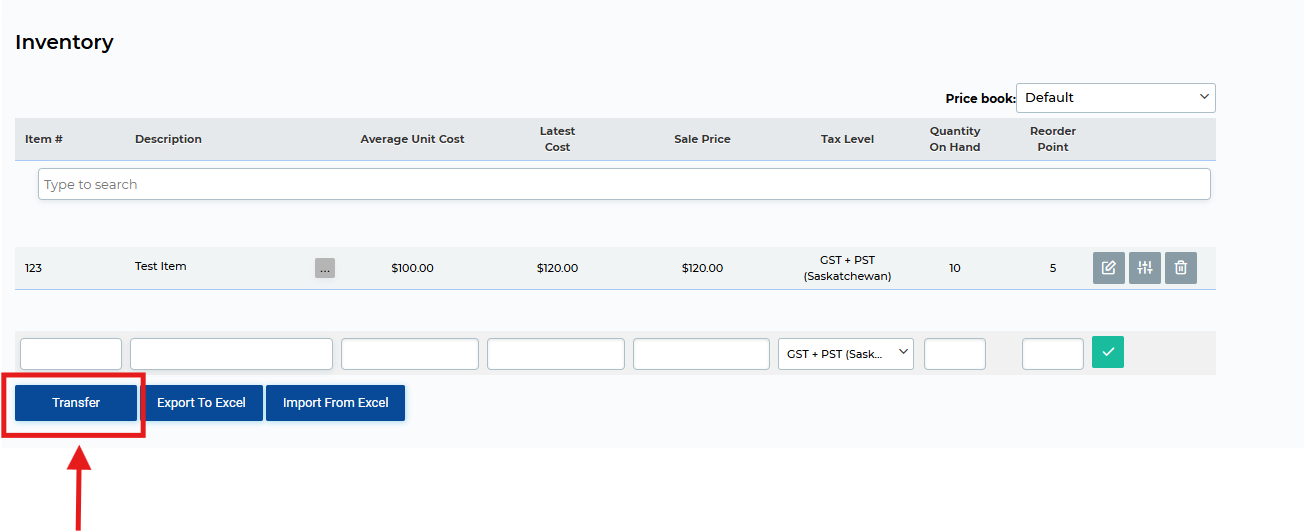
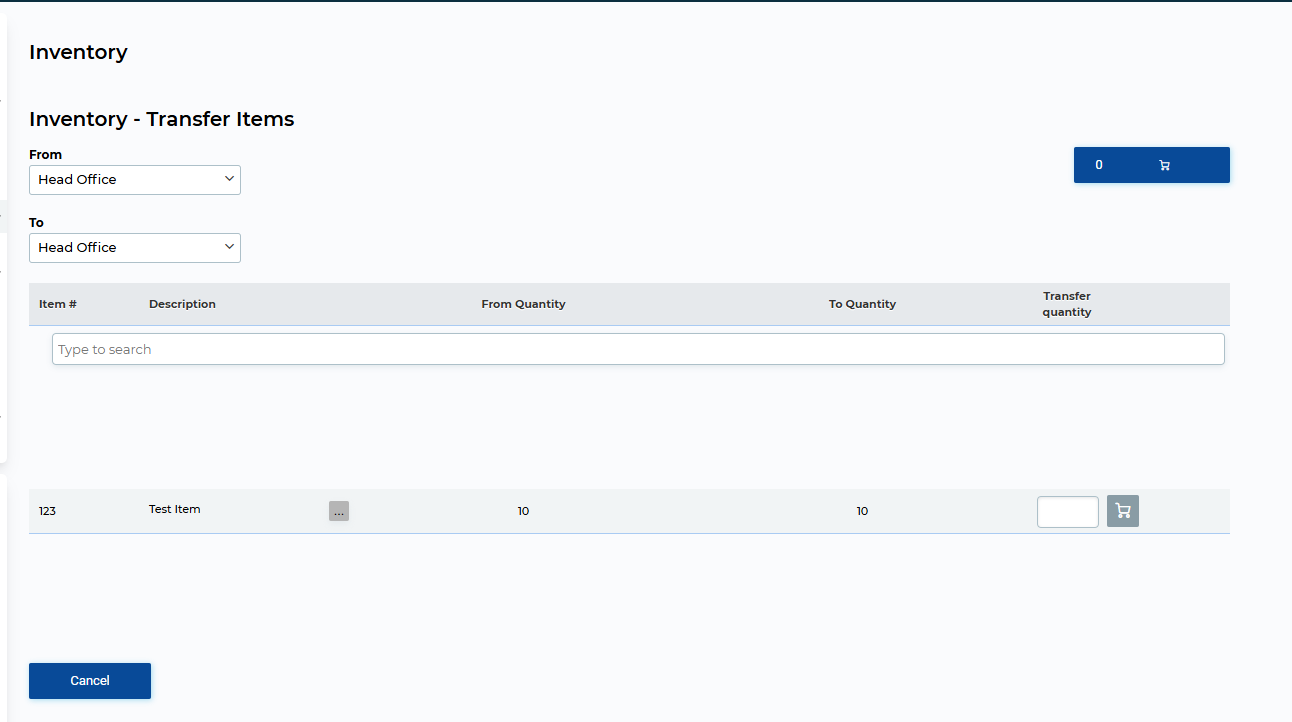
To transfer inventory between locations, click the Transfer button, then:
-
Select the source and destination locations
-
Search for the item
-
Enter the quantity to move
-
Confirm the transfer
🔍 Tip: Technicians can also transfer items directly within a Work Order.
For more detailed information about updating your inventory, check out this article.
Need Help?
If you have any questions or need support, please click the Help button in your ServiceBox account or email us at support@getservicebox.com.