
Introduction
This article will tell you all you need to know to take advantage of the Multi-Location Enhancement feature in ServiceBox. Multi-Location Enhancement is a feature within ServiceBox through which users can compartmentalize different information specific to different locations. For example, if you are a company that has two different offices in different cities, Multi-Location Enhancement will allow you to compartmentalize Work Orders, Invoices, Quotes, etc specific to your multiple locations.
How to Activate On Multi-Location Enhancement
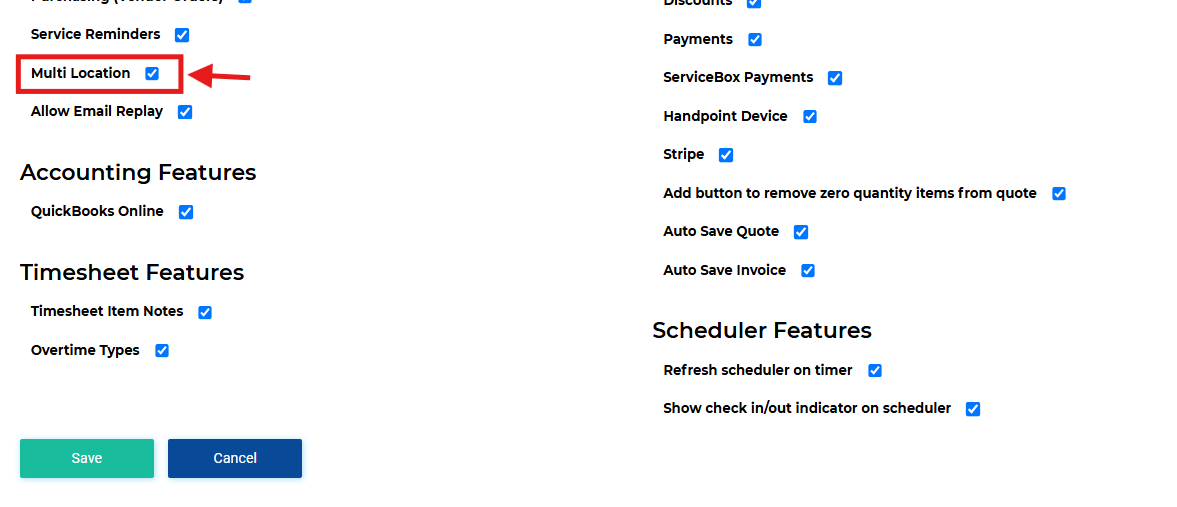
To enable this feature, go to Settings → Plan → Features, then check the Multi-Location option.
How to Add Multiple Locations in Your ServiceBox Settings
To view your locations, or to add a new location, go into your ServiceBox "Settings" in the dropdown menu on the left-hand side of your screen. Then, click on the Tenant Tab. Under the "Settings" subsection of the Tenant Tab, you will see the primary Name, Contact, and Address of your company (shown in the following screenshot).
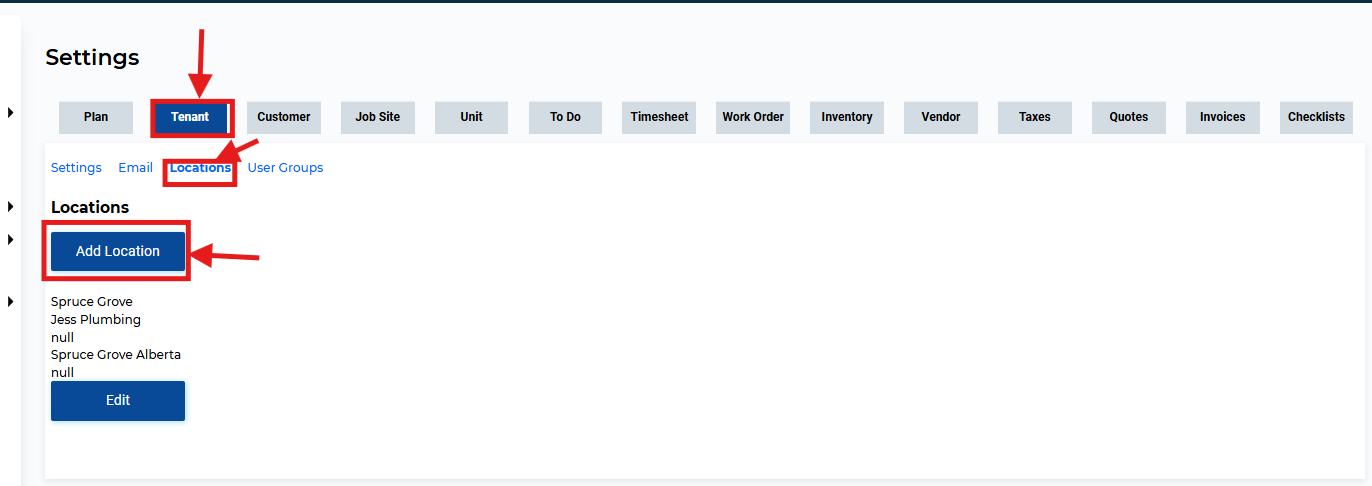
To add a new location, click on the "Locations" subsection of the Tenant Tab. Here, you can view all the locations associated with your ServiceBox account. To add another, click the "Add Location" button, and a pop-up will appear for you to enter the information of the new location and click the "Save" Button.
How to Assign Employees to Specific Locations
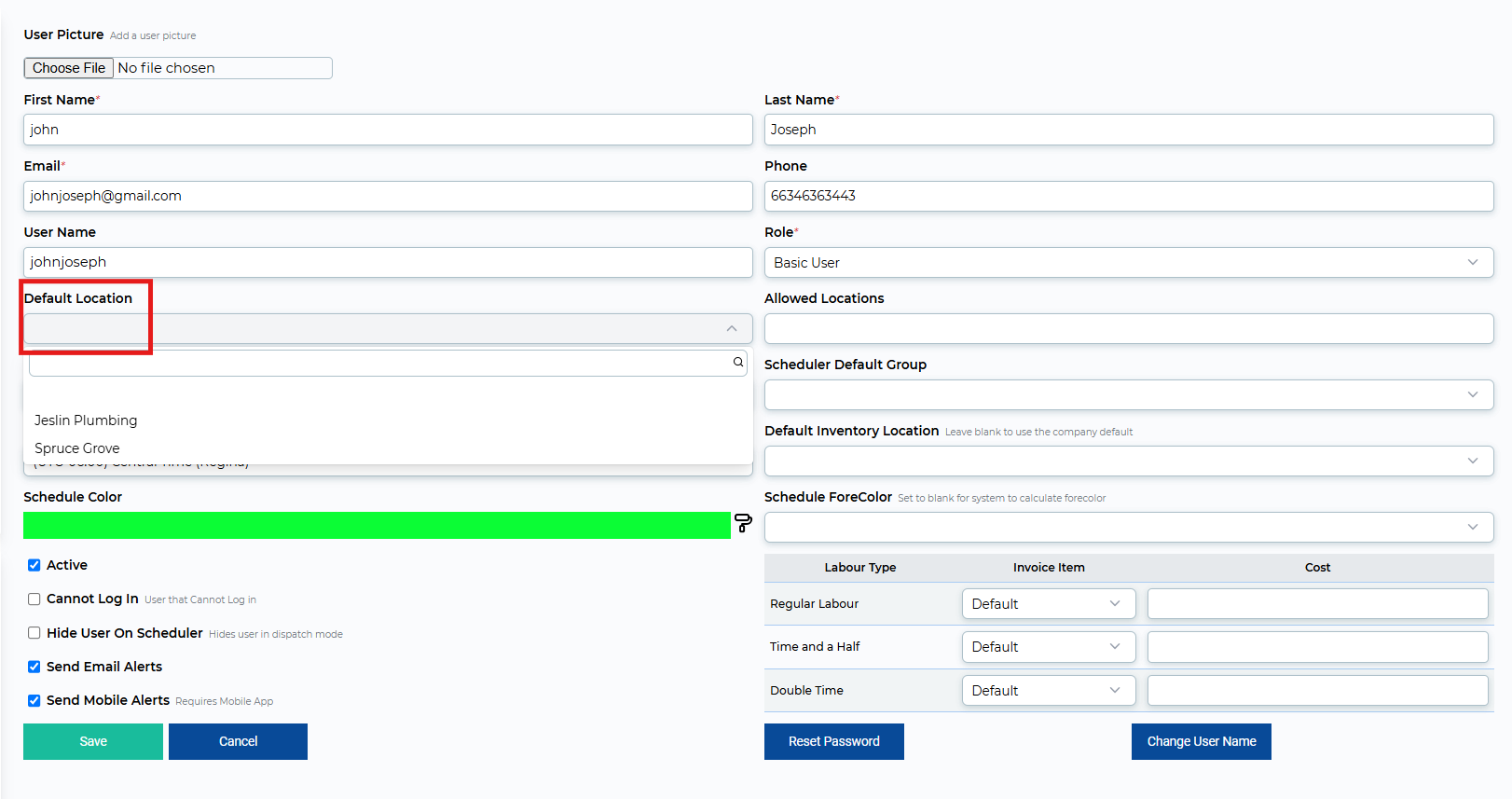
To assign your employees to one of your multiple locations, click on "Users" in the dropdown menu on the right-hand side of your ServiceBox screen. This will show you the list of users on your ServiceBox. Click on one of these usernames to access their information. As shown in the screenshot below, you will be able to select a "Default Location" for this user from a dropdown menu which includes your multiple locations.
You can also select all the locations you would like each user to be allowed to access in ServiceBox, according to the locations in which that user works. This can be added in the "Allowed Locations" section of the Edit User page.
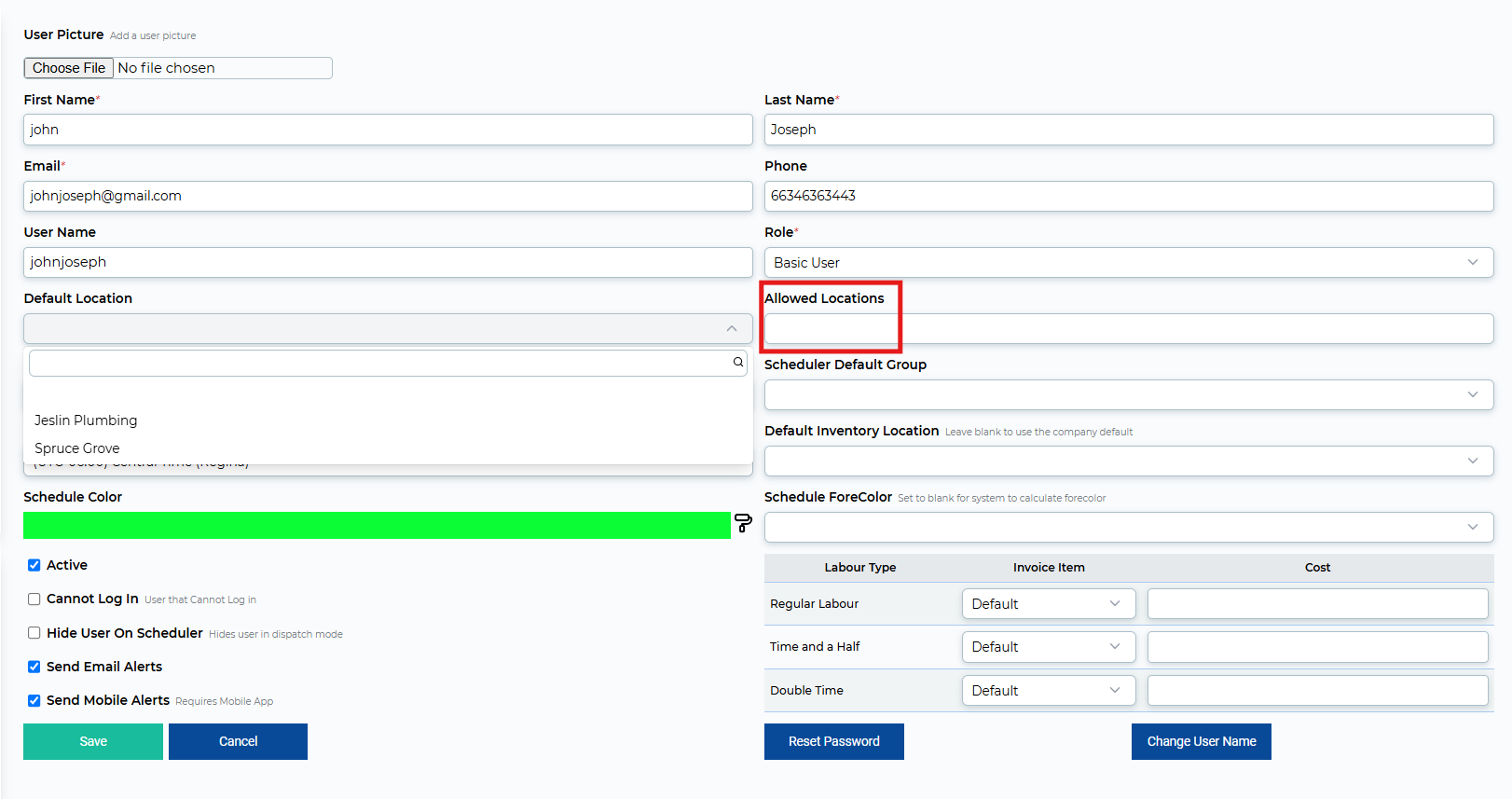
Click Save, and the multi-location settings will be applied to this user.
How Multi-Location Enhancement Affects a User's ServiceBox Functionality
- Users should only be able to see quotes, Work Orders, Recurring Work and invoices for allowed locations. Both in the list and in the edit screen itself (for example, if they are sent a link to a quote for a location they do not have access to, they should not be able to open the quote).
- On the scheduler, users should only be able to filter on allowed locations. The location filter affects the schedule, work order list, and users. For example, the screenshot below shows the Scheduler's filter choices for a user who has been granted access to two locations.
- On the scheduler, users who have restricted location access can only see users who are in their location or who have no location specified in their settings.
Need Help?
If you have any questions or need support, please click the Help button in your ServiceBox account or email us at support@getservicebox.com.