---
title: "Resolving \"Error syncing invoice: Error adding item \"Item Name\": BadRequest. Details: The name supplied already exists. : Id=2641 , \""
description: "Resolving \"Error syncing invoice: Error adding item \"Item Name\": BadRequest. Details: The name supplied already exists. : Id=2641 , \""
---
[Skip to content](https://learn.getservicebox.com/resolving-error-syncing-invoice-error-adding-item-item-name-badrequest.-details-the-name-supplied-already-exists.-id2641-#main-content)
English
Show submenu for translations
[](https://learn.getservicebox.com/knowledge-base?hsLang=en)
Open main navigation
Close main navigation
- English
Show submenu for translations
How can we help you?
- There are no suggestions because the search field is empty.
1. [ServiceBox Support Knowledge Base](https://learn.getservicebox.com/?hsLang=en)
2. [QuickBooks Online](https://learn.getservicebox.com/quickbooks-online?hsLang=en)
3. [User Guide](https://learn.getservicebox.com/quickbooks-online?hsLang=en#user-guide)
# Resolving "Error syncing invoice: Error adding item "Item Name": BadRequest. Details: The name supplied already exists. : Id=2641 , "
## This error occurs when item names in ServiceBox conflict with existing names in QuickBooks Online—adjust separators or naming conventions to fix it.
### **Understanding the Error Message**
The error message "Error syncing invoice: Error adding item "Item Name": BadRequest. Details: The name supplied already exists. : Id=2641," suggests that there's an issue with adding an item in QuickBooks Online. It specifically indicates that a name supplied already exists within the system. This could be a name clash with an employee's name, an existing item name, or any other entity within QuickBooks Online.
### **The Cause of the Error**
The error typically occurs when ServiceBox tries to add a new item with a name that contains a separator, which, in this case, is a space followed by a dash and then another space (e.g., "Manpreet - supervisor "). This separator is used in most cases by ServiceBox to split the item name and description in QuickBooks Online when creating a new line item. However, if this separator is used in a way that clashes with existing names or items, it can trigger the "Error-Adding Item" message.
### **Resolving the Issue**
#### **1. Change the Separator**
One effective solution is to replace the current separator (space-dash-space) with a different separator that doesn't clash with existing names. This could be an underscore (\_), a comma (,), a colon (:) or any other character that isn't commonly used in your naming conventions.
#### **2. Modify QuickBooks Online Settings in ServiceBox**
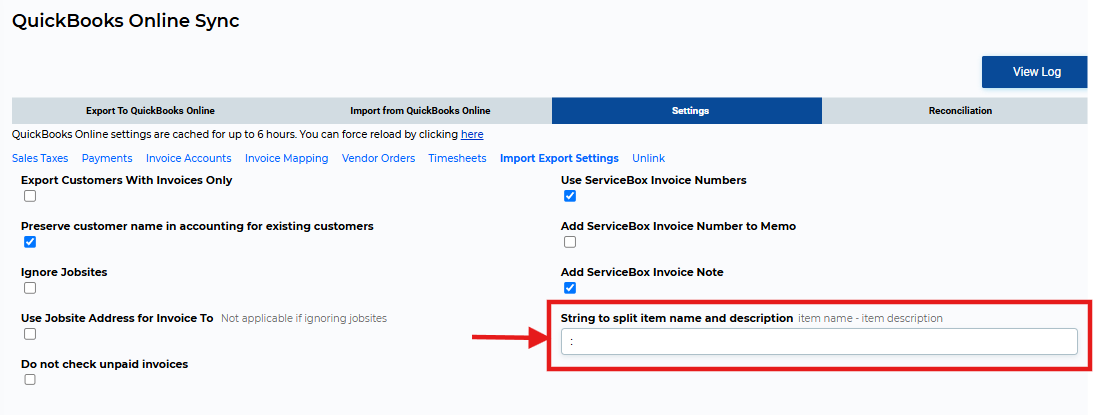
Click on the username appearing on the top right corner \> go to **'QuickBooks Online" \> "Settings" \> "Export/Import settings"** If the space-dash-space separator is used here, consider updating it to the new separator you've chosen. This ensures that the system recognizes the correct separator for splitting item names and descriptions.
[](https://s3.amazonaws.com/cdn.freshdesk.com/data/helpdesk/attachments/production/19114406449/original/2TJPdstxXkqarW2bqPTXdJgcCFYNKwGZqg.png?1691711360)
#### **3. Adjust Naming Conventions on the line items**
If you've been using the space-dash-space separator in ServiceBox QuickBooks settings as shown in the image above.
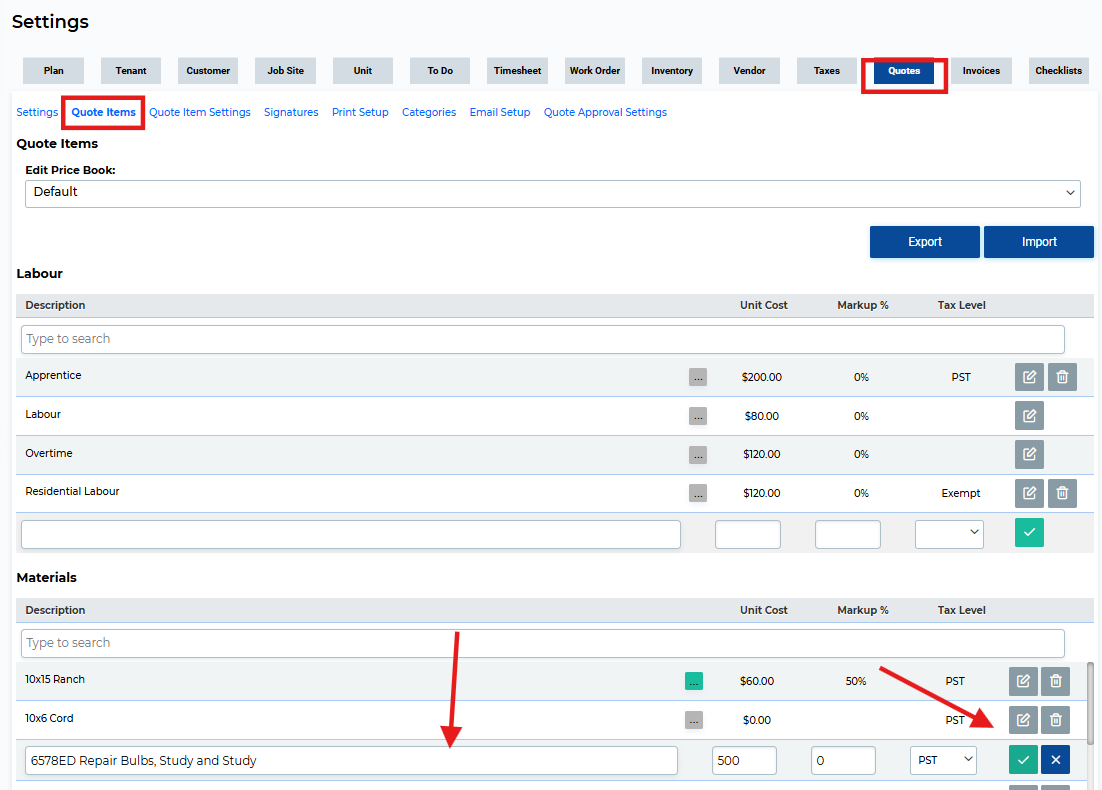
Then, you may consider changing the separator used in the line item to a different separator or set up the line item without the spaces if you still want to use the dash as a separator.
To edit the line item in ServiceBox, please go to **Settings \> Quote Items \> Edit the line item \> click Save.**
[](https://s3.amazonaws.com/cdn.freshdesk.com/data/helpdesk/attachments/production/19114406507/original/qG5pxpoNhtxLuZ-_wtWax95Yy8AUHxVrfw.png?1691711718)
#### **4. Avoid Duplicate Names**
Always double-check for existing names before adding a new item. QuickBooks Online requires unique names for different entities. By avoiding duplicate names, you reduce the chances of encountering the "Error-Adding Item" message.
#### **5. Special Characters**
If any line item has a colon or semicolon, QuickBooks Online treats it as a special character, so the user might need to replace it with another symbol.
### **Need Help?**
If you have any questions or need support, please click the **Help** button in your ServiceBox account or email us at **support@getservicebox.com**.
- [Video Learning](https://learn.getservicebox.com/video-learning?hsLang=en#main-content)
- [Accounting Integrations](https://learn.getservicebox.com/video-learning?hsLang=en#accounting-integrations)
- [FAQs](https://learn.getservicebox.com/faqs?hsLang=en)
- [Getting started](https://learn.getservicebox.com/getting-started?hsLang=en#main-content)
- [User Guides](https://learn.getservicebox.com/getting-started?hsLang=en#user-guides)
- [ServiceBox Mobile](https://learn.getservicebox.com/servicebox-mobile?hsLang=en#main-content)
- [Getting Started](https://learn.getservicebox.com/servicebox-mobile?hsLang=en#getting-started)
- [User Guide Technician](https://learn.getservicebox.com/servicebox-mobile?hsLang=en#user-guide-technician)
- [User Guide Admin](https://learn.getservicebox.com/servicebox-mobile?hsLang=en#user-guide-admin)
- [FAQ](https://learn.getservicebox.com/servicebox-mobile?hsLang=en#faq)
- [New Release](https://learn.getservicebox.com/servicebox-mobile?hsLang=en#new-release)
- [Invoices](https://learn.getservicebox.com/invoices?hsLang=en#main-content)
- [Getting Started](https://learn.getservicebox.com/invoices?hsLang=en#getting-started)
- [Advanced Functionality](https://learn.getservicebox.com/invoices?hsLang=en#advanced-functionality)
- [User Guide](https://learn.getservicebox.com/invoices?hsLang=en#user-guide)
- [FAQ](https://learn.getservicebox.com/invoices?hsLang=en#faq)
- [Quotes](https://learn.getservicebox.com/quotes?hsLang=en#main-content)
- [Getting Started](https://learn.getservicebox.com/quotes?hsLang=en#getting-started)
- [User Guide](https://learn.getservicebox.com/quotes?hsLang=en#user-guide)
- [Advanced Functionality](https://learn.getservicebox.com/quotes?hsLang=en#advanced-functionality)
- [FAQ](https://learn.getservicebox.com/quotes?hsLang=en#faq)
- [Work Orders](https://learn.getservicebox.com/work-orders?hsLang=en#main-content)
- [Getting Started](https://learn.getservicebox.com/work-orders?hsLang=en#getting-started)
- [User Guide](https://learn.getservicebox.com/work-orders?hsLang=en#user-guide)
- [Advanced Functionalities](https://learn.getservicebox.com/work-orders?hsLang=en#advanced-functionalities)
- [Work Order - FAQ](https://learn.getservicebox.com/work-orders?hsLang=en#work-order-faq)
- [Job Sites](https://learn.getservicebox.com/job-sites?hsLang=en#main-content)
- [User Guide](https://learn.getservicebox.com/job-sites?hsLang=en#user-guide)
- [Advanced Functionality](https://learn.getservicebox.com/job-sites?hsLang=en#advanced-functionality)
- [FAQ](https://learn.getservicebox.com/job-sites?hsLang=en#faq)
- [Recurring Work](https://learn.getservicebox.com/recurring-work?hsLang=en#main-content)
- [User Guide](https://learn.getservicebox.com/recurring-work?hsLang=en#user-guide)
- [FAQ](https://learn.getservicebox.com/recurring-work?hsLang=en#faq)
- [Scheduler](https://learn.getservicebox.com/scheduler?hsLang=en#main-content)
- [User Guide](https://learn.getservicebox.com/scheduler?hsLang=en#user-guide)
- [Advanced Functionality](https://learn.getservicebox.com/scheduler?hsLang=en#advanced-functionality)
- [FAQ](https://learn.getservicebox.com/scheduler?hsLang=en#faq)
- [Timesheets](https://learn.getservicebox.com/timesheets?hsLang=en#main-content)
- [User Guide](https://learn.getservicebox.com/timesheets?hsLang=en#user-guide)
- [Advanced Functionality](https://learn.getservicebox.com/timesheets?hsLang=en#advanced-functionality)
- [FAQ](https://learn.getservicebox.com/timesheets?hsLang=en#faq)
- [Inventory](https://learn.getservicebox.com/inventory?hsLang=en#main-content)
- [User Guides](https://learn.getservicebox.com/inventory?hsLang=en#user-guides)
- [FAQ](https://learn.getservicebox.com/inventory?hsLang=en#faq)
- [Vendor Orders](https://learn.getservicebox.com/vendor-orders?hsLang=en#main-content)
- [Getting Started](https://learn.getservicebox.com/vendor-orders?hsLang=en#getting-started)
- [Advanced Functionality](https://learn.getservicebox.com/vendor-orders?hsLang=en#advanced-functionality)
- [User Guide](https://learn.getservicebox.com/vendor-orders?hsLang=en#user-guide)
- [FAQ](https://learn.getservicebox.com/vendor-orders?hsLang=en#faq)
- [Reporting](https://learn.getservicebox.com/reporting?hsLang=en#main-content)
- [Getting Started](https://learn.getservicebox.com/reporting?hsLang=en#getting-started)
- [FAQ](https://learn.getservicebox.com/reporting?hsLang=en#faq)
- [User Guide](https://learn.getservicebox.com/reporting?hsLang=en#user-guide)
- [Integrations](https://learn.getservicebox.com/integrations?hsLang=en#main-content)
- [Accounting Connector](https://learn.getservicebox.com/integrations?hsLang=en#accounting-connector)
- [ServiceBox Payments](https://learn.getservicebox.com/integrations?hsLang=en#servicebox-payments)
- [Product Updates](https://learn.getservicebox.com/product-updates?hsLang=en)
- [Data Services](https://learn.getservicebox.com/data-services?hsLang=en#main-content)
- [FAQ](https://learn.getservicebox.com/data-services?hsLang=en#faq)
- [QuickBooks Desktop](https://learn.getservicebox.com/quickbooks-desktop?hsLang=en#main-content)
- [User Guide](https://learn.getservicebox.com/quickbooks-desktop?hsLang=en#user-guide)
- [Getting Started](https://learn.getservicebox.com/quickbooks-desktop?hsLang=en#getting-started)
- [FAQ](https://learn.getservicebox.com/quickbooks-desktop?hsLang=en#faq)
- [QuickBooks Online](https://learn.getservicebox.com/quickbooks-online?hsLang=en#main-content)
- [Getting Started](https://learn.getservicebox.com/quickbooks-online?hsLang=en#getting-started)
- [User Guide](https://learn.getservicebox.com/quickbooks-online?hsLang=en#user-guide)
- [FAQ](https://learn.getservicebox.com/quickbooks-online?hsLang=en#faq)
- [Printing](https://learn.getservicebox.com/printing?hsLang=en)
- [Sage 50 (Canada)](https://learn.getservicebox.com/sage-50-canada?hsLang=en#main-content)
- [Configuration](https://learn.getservicebox.com/sage-50-canada?hsLang=en#configuration)
- [FAQ](https://learn.getservicebox.com/sage-50-canada?hsLang=en#faq)
- [User Guide](https://learn.getservicebox.com/sage-50-canada?hsLang=en#user-guide)
- [First Steps for ServiceBox Users](https://learn.getservicebox.com/first-steps-for-servicebox-users?hsLang=en#main-content)
- [User Guide](https://learn.getservicebox.com/first-steps-for-servicebox-users?hsLang=en#user-guide)
- [FAQ](https://learn.getservicebox.com/first-steps-for-servicebox-users?hsLang=en#faq)
- [Configuring Your ServiceBox Site](https://learn.getservicebox.com/configuring-your-servicebox-site?hsLang=en#main-content)
- [Getting Started](https://learn.getservicebox.com/configuring-your-servicebox-site?hsLang=en#getting-started)
- [User Guides](https://learn.getservicebox.com/configuring-your-servicebox-site?hsLang=en#user-guides)
- [FAQ](https://learn.getservicebox.com/configuring-your-servicebox-site?hsLang=en#faq)
- [Advanced Functionality](https://learn.getservicebox.com/configuring-your-servicebox-site?hsLang=en#advanced-functionality)
- [Customer](https://learn.getservicebox.com/customer?hsLang=en#main-content)
- [User Guide](https://learn.getservicebox.com/customer?hsLang=en#user-guide)
- [Advanced Functionality](https://learn.getservicebox.com/customer?hsLang=en#advanced-functionality)
- [FAQ](https://learn.getservicebox.com/customer?hsLang=en#faq)
- [Notes](https://learn.getservicebox.com/notes?hsLang=en)
- [To Dos](https://learn.getservicebox.com/to-dos?hsLang=en#main-content)
- [Getting Started](https://learn.getservicebox.com/to-dos?hsLang=en#getting-started)
- [To Dos - User Guide](https://learn.getservicebox.com/to-dos?hsLang=en#to-dos-user-guide)
- [Vendor](https://learn.getservicebox.com/vendor?hsLang=en#main-content)
- [User Guide](https://learn.getservicebox.com/vendor?hsLang=en#user-guide)
[![sblogo-whiteandtransparent120x30\[8666\]](https://learn.getservicebox.com/hs-fs/hubfs/sblogo-whiteandtransparent120x30%5B8666%5D.png?width=120&height=30&name=sblogo-whiteandtransparent120x30%5B8666%5D.png "sblogo-whiteandtransparent120x30[8666]")](https://learn.getservicebox.com/knowledge-base?hsLang=en)
Copyright © 2026