
A new Sage 50 account range feature has been added for Sage 50 accounting-connected customers.
This feature allows us to define custom account ranges for customers whose Sage 50 account numbers do not match the default ranges typically displayed in ServiceBox.
This is useful when a customer’s equity, revenue, or expense accounts use a different numbering structure than the standard Sage 50 account range we normally expect.
When to Use This Feature
Do not enable this feature for every Sage 50 customer.
Use this feature when:
- A customer’s Sage 50 account numbers are different from the standard/default account ranges.
- Revenue, expense, equity, or purchase accounts are not appearing correctly in ServiceBox Accounting Connector.
- The customer has a unique chart of accounts.
- The account dropdowns in ServiceBox Accounting Connector are missing accounts that exist in Sage 50.
When Not to Use This Feature
Do not enable this feature if:
- The customer’s Sage 50 accounts follow the usual/default account numbering.
- The correct accounts are already displayed in ServiceBox Accounting Connector.
- There is no issue with account selection or account visibility.
Important Note
The feature is enabled at the individual tenant level, not globally for all customers.
Step 1: Review the Customer’s Sage 50 Account Ranges
Before enabling the feature, confirm whether the customer uses unique account ranges in Sage 50.
To check this:
- Open the customer’s Sage 50 software.
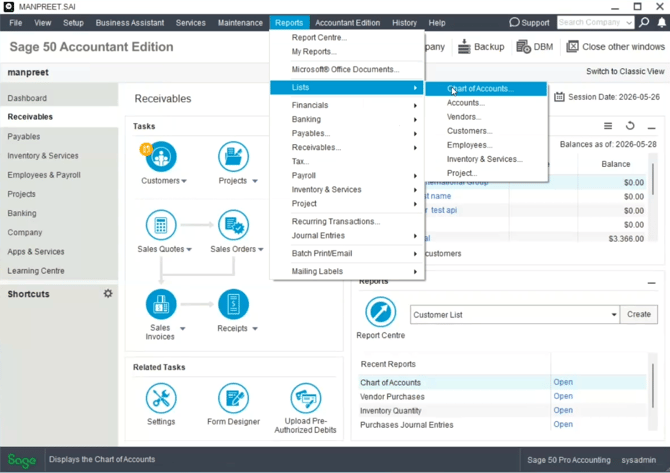
- Go to Reports -> Lists -> Chart of Accounts.
- Open the account list/chart of accounts.
- Review the customer’s account numbers for revenue, expense, equity, and purchase-related accounts.
If the customer’s account numbers look standard and match the usual Sage 50 ranges, the feature does not need to be enabled.
If the customer has unique or non-standard account numbers, continue with the steps below.
Step 2: Go to the Secure Site
To enable the feature for a customer:
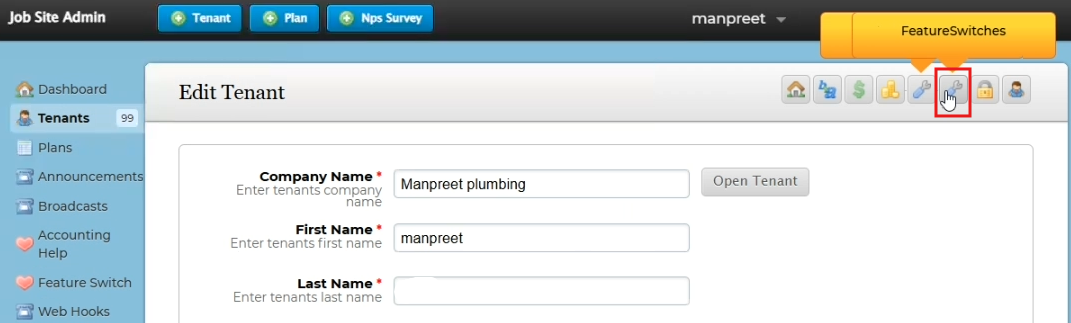
- Go to the Secure Site.
- Search for and open the customer’s tenant/site.
- Go to the Feature Switches tab.
Step 3: Enable the Sage 50 Account Range Feature
In the customer’s Feature Switches:
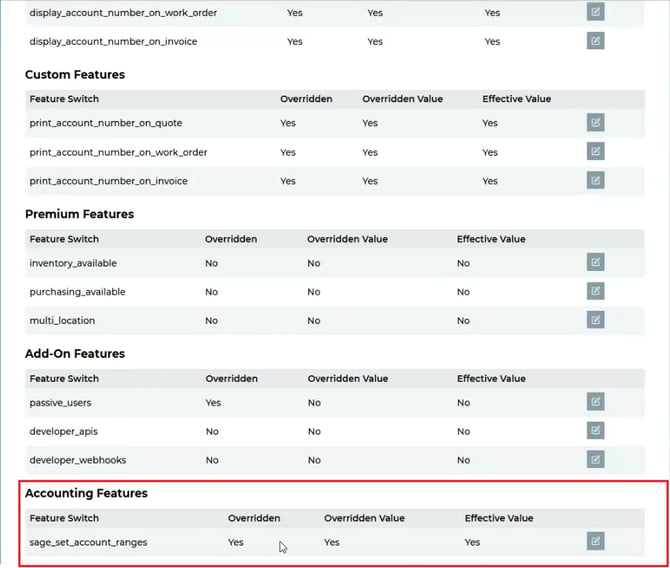
- Look for Sage Set Account Ranges.
- Change the setting from No to Yes.
- Save the change.
Once enabled, the account range fields will become available in the customer’s Sage 50 accounting settings.
Step 4: Open the ServiceBox Accounting Connector
After enabling the feature:
- Open the accounting connector.
- Go to Set Up.
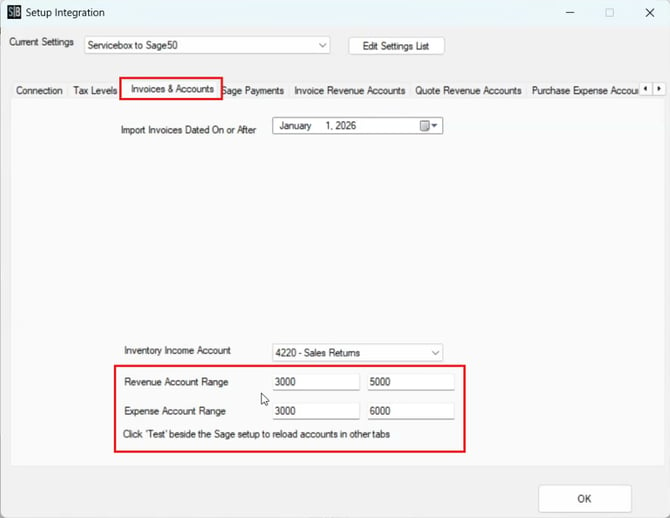
- Go to the Invoice and Accounts section.
You should now see fields where you can enter the Sage 50 account ranges.
Step 5: Enter the Customer’s Account Ranges
Using the customer’s Sage 50 chart of accounts, enter the correct account ranges into the range fields.
For example:
- Revenue account range: enter the start and end account numbers used for revenue accounts.
- Expense account range: enter the start and end account numbers used for expense accounts.
- Purchase/accounting-related ranges: enter the correct range based on the customer’s Sage 50 setup.
The ranges entered here determine which accounts display in the matching accounting dropdowns.
For example, if the revenue account range is set from 3000 to 5000, the Accounting Revenue dropdown will only display accounts within that range.
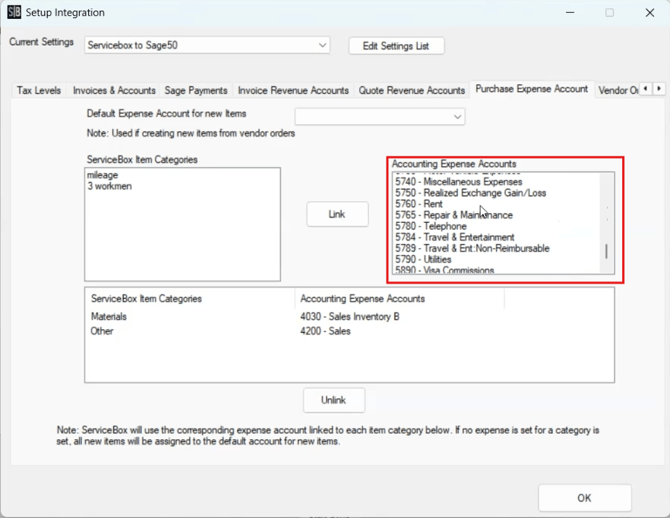
If the purchase or expense range is set up to 6000, the purchase-related account dropdown will display accounts within that range.
Step 6: Confirm the Account Dropdowns Display Correctly
After entering the account ranges:
- Review the accounting dropdowns in the Sage 50 settings.
- Confirm that the correct accounts are displaying based on the ranges entered.
- Check revenue, expense, and purchase-related fields as needed.
At this time, the feature does not display detailed error messages or validation warnings. Because of this, agents should carefully confirm the ranges before saving or finalizing the setup.
Once the correct ranges have been entered and the dropdowns are displaying the expected accounts:
- Save the changes.
- Continue with the customer’s Sage 50 accounting setup.
- Run a sync or test as needed to confirm the setup is working correctly.
Need Help?
If you have any questions or need support, please click the Help button in your ServiceBox account or email us at support@getservicebox.com.